

How it works
From your spelling list to a class link in a minute
Type this week’s words, share one link, and students practice with three games in any browser. Here’s every step, plus the limits and the ways to share.
Sign in
Sign in with Google or an email and password. It’s free.
Type or paste your words
Give the list a title and paste up to 40 words, separated by spaces, commas or new lines. Play each word to hear how it will be read aloud. Choose which games your class sees and how hard they are. Add a 4-digit PIN if you want one.
Share the link
Save the list to get its link. Email it home, post it with the Share to Google Classroom button, show its QR code, or print a flyer with the words, the QR code and the link.
Students play
Students open the link in any web browser, pick Scramble, Missing letter or Flashcards, and practice. Each word is read aloud. No accounts, no logins.
Making a list
Paste the list the way you have it
Copy the words from your weekly list, a document or an email and paste them in. Spaces, commas and new lines all work, and repeated words are skipped. Each word gets a play button, so you can hear it the way students will before you share.
Lists keep their link when you edit them, so a list you fix on Tuesday is the list students see on Tuesday. To start next week, make a copy of this week’s list and change the words.
Sharing
Every way to get the link to students
- Email or newsletter. Copy the class link into it, with the PIN if the list has one.
- Google Classroom. The Share to Google Classroom button opens Classroom with the link ready to post.
- QR code. Show it on the board, post it at a center, or download it as an image.
- Printed flyer. One page for home with the week's words written in, a QR code to practice them, the link and the PIN.
- Copy the link. Paste it into Seesaw, a class website or anywhere else.
For students
What students see
The link first asks how to play: in the Spelling Stream app or in the browser. The app choice asks a grown-up question, then shows a link to tap and a QR code to scan, and either one opens the list in the app. In the browser, students pick one of three games, hear each word, and play through the whole list in a random order. A Hear it button replays the word whenever they need it.
If the list has a PIN, students type it once. The browser tab remembers it until it’s closed. Students never make an account, sign in or type anything about themselves, and nothing they do is tied to them. Student pages only add to anonymous daily totals.
Limits
The numbers
| Words per list | Up to 40 |
|---|---|
| Lists per teacher | Up to 25 |
| Letters per word | Up to 30; letters, apostrophes and hyphens |
| List title | Up to 60 characters |
| Games | 3 games; you choose which ones and how hard |
| PIN | Optional, 4 digits |
| Voice | US or Australian English |
| Student accounts | None needed |
| Teacher accounts | Adults in the United States, Australia and New Zealand |
| Price | Free |
No surprises
What’s free, and how the app compares
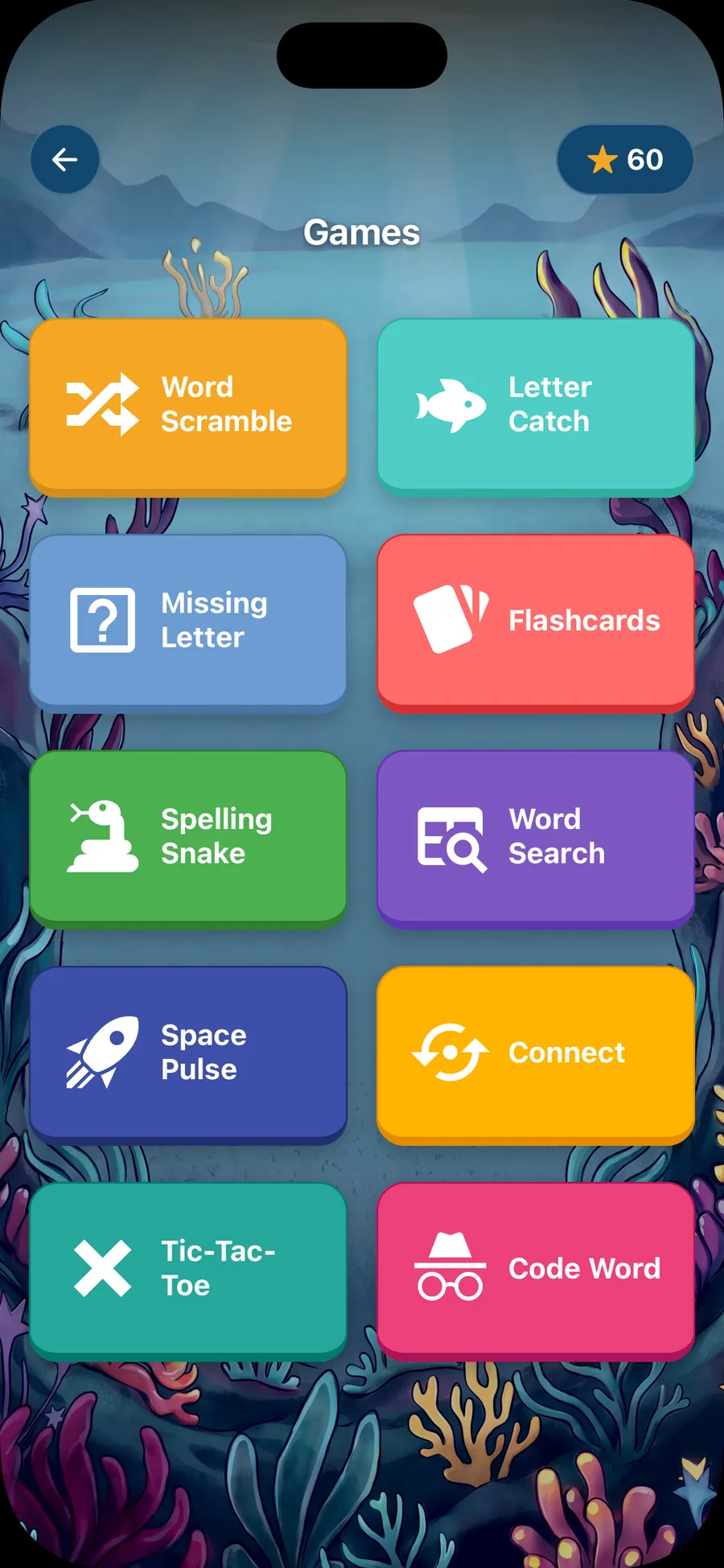
Everything on this site is free. It’s a browser tool for teachers, with no paid tier, no trial and no ads. The Spelling Stream app is a separate product for families. It’s free too, with more games and your own voice recordings, and it has limits the class link doesn’t. Spelling Stream Pro is the app’s paid plan.
| Class link, on this site | Spelling Stream app, free | Spelling Stream Pro | |
|---|---|---|---|
| Price | Free | Free | US$24.99 a year or US$2.99 a month. The yearly plan starts with a 7-day free trial. See pricing |
| Where | Any web browser | iPhone, iPad and Android | iPhone, iPad and Android |
| Words in games and tests | Every word on the list, up to 40 | The first 10 words of the list | Up to 50 words per list |
| Lists | Up to 25 per teacher | One list | Up to 100 lists |
| Games | 3 games | All 10 games | All 10 games |
| Practice tests | Not included | Included | Included |
| Your own voice recordings | Not included | Included, with no limit | Included, with no limit |
| Other voice | US or Australian English voice | The built-in voice | The built-in voice, or a clearer recorded voice |
| Rewards | None | Stars and stickers | Stars, more stickers, and rewards you set |
| Without internet | Needs the internet | Works offline once the list is in | Works offline once the list is in |
| Only in Pro | None of these | None of these | Words your child keeps missing come first, cloud sync, and a profile for each child |
How a list gets into the app
- Get Spelling Stream on iPhone, iPad or Android, open it once and finish setting it up.
- Open the class link, choose Play in the mobile app, and answer the grown-up question.
- Tap the link on the phone that has the app, or scan the QR code with it. Both work for 30 days.
- After the app’s parent check, the list opens for you to check and save. Only its title and words go to the app.
What the free app’s limits mean
- 10 words. The whole list comes into the app, but free games and tests use only its first 10 words. A 20-word list leaves 10 words out. The class link plays all 20, free.
- One list. Free holds one list. If the app already has a list, it asks first: replace it, get Pro to keep both, or cancel. Replacing deletes the old list and its recordings, and that can’t be undone. A new list each week takes the place of last week’s.
For practice at home
More practice at home, in the free Spelling Stream app
Families can put this week's list into the Spelling Stream app on iPhone, iPad or Android and keep practicing on their own device.
- Open the class list from its link, or snap a photo of it or type it in
- Games, practice tests, and stars and stickers to earn
- Words read in a parent’s own recorded voice, or the built-in voice
- No ads, no account, and it works offline
The free app covers one word list, with the first 10 words in games and tests. Spelling Stream Pro covers up to 100 lists of 50 words each. More about the app at spellingstream.com
Make your first list in a minute
Free for teachers. Sign in with Google or an email and password, type your words, and share the link.